Guide
How to lock a MacBook
Press Control-Command-Q. That locks your MacBook straight away, and your apps stay open behind the lock. If your Mac has Touch ID, pressing that button locks it too. Then set it to ask for a password as soon as it sleeps, so it stays protected when you forget.
· Checked against Apple's guides on 5 November 2026
What this covers
What are all the ways to lock a MacBook?
There are five ways to lock it on the spot. Pick one and make it a habit.
| Way | What to do | Best for |
|---|---|---|
| Keyboard shortcut | Press Control-Command-Q | Every MacBook; hands already on the keys |
| Touch ID button | Press it once | Macs with Touch ID; the quickest |
| Apple menu | Choose Apple menu > Lock Screen | When you can't remember the shortcut |
| Hot corner | Move the pointer to a corner you set up | Locking with one hand on the trackpad |
| Lock Screen key | Press it on a Magic Keyboard that has one | When you use a separate keyboard |
To get back in, press any key and type your password, or use Touch ID or an Apple Watch.
How do you lock a MacBook, step by step?
With the keyboard shortcut
Hold Control and Command, then press Q. Apple lists it plainly: “Control-Command-Q: Lock your screen.” Apple also says some shortcuts need holding slightly longer, so hold it for a moment if nothing happens. Be careful, because Command-Q alone quits the app you are in.
With Touch ID
Press the Touch ID button at the top right of the keyboard once. Apple says that on keyboards with Touch ID, you “press to lock your screen”. Not every MacBook has it. Apple's specs show one MacBook Neo model without Touch ID, so use the shortcut on that one.
With the Apple menu
Click the Apple logo at the top left of the screen, then choose Lock Screen. It takes two clicks, and you don't have to remember anything.
With a hot corner
Open System Settings and search for Hot Corners. Click the menu for the corner you want and choose Lock Screen, then click Done. Now moving the pointer into that corner locks your Mac. Pick a corner you won't hit by accident.
How do you make a MacBook lock automatically?
Two settings work together, and both are in the same place. Choose Apple menu > System Settings, then click Lock Screen in the sidebar.
- Set “Turn display off on battery when inactive” to a short time, and do the same for the power adapter setting. This decides how long your Mac waits.
- Set “Require password after screen saver begins or display is turned off” to the shortest time. This is the one that does the locking. Apple says a password “must be entered before the Mac can be used” when it wakes.
Shorter is safer, though a very short time gets annoying while you read something. A few minutes suits most people.
While you are there, turn on “Show message when locked”. Apple notes it can hold contact details for a lost Mac, so an honest finder can reach you. Use an email address, not your home address.
Does closing the lid lock a MacBook?
Closing the lid puts it to sleep. The lock comes from the password setting above: if it is set to the shortest time, your Mac asks for a password as soon as you open it. If it is set to a long time, someone who opens the lid soon after may get straight in. So check that setting once, then trust the lid.
How do you lock a MacBook with no Touch ID?
Control-Command-Q and the Apple menu work the same way. Apple also gives two options for built-in keyboards without Touch ID:
 Control-Shift-Power puts the displays to sleep.
- Holding the power button for 1.5 seconds puts the Mac to sleep.
Both only protect you if the password setting above is on, so set that first.
Can you lock a MacBook from your iPhone?
Only if it is lost or stolen. There is no everyday remote lock button. What you can do is open the Find My app and turn on Lost Mode. Apple says a Mac with Apple silicon is then “locked with your Apple Account password”.
Don't use this because you forgot to lock it at the office. The Mac “must be powered on and connected to the internet” for the lock to work, and you can't undo it from your phone: you have to unlock it on the Mac itself. If your Mac really is gone, follow our checklist for a stolen MacBook.
What doesn't locking your MacBook stop?
Locking protects what is on your Mac. It does nothing to keep the Mac itself. Apple says so directly: “Locking the screen doesn't prevent other users from turning off the Mac, restarting it, and logging in.”
- A locked Mac can still be picked up and carried away, and nobody will notice.
- It can be restarted, so anything you hadn't saved may be lost.
- It only protects your files if FileVault is on and your password is a good one.
- Someone who has watched you type your password can still get in.
So lock it every time, and still think about where you leave it. We cover that in our guides for working in a cafe and for leaving a laptop in a hotel room.
Locking plus an alarm: how Deskwatch fits in
Deskwatch is the app this site sells, so read this with that in mind. It covers the gap above: the Mac is locked, but nothing happens if someone takes it. If you turn on one setting, locking your Mac also turns on the alarm.
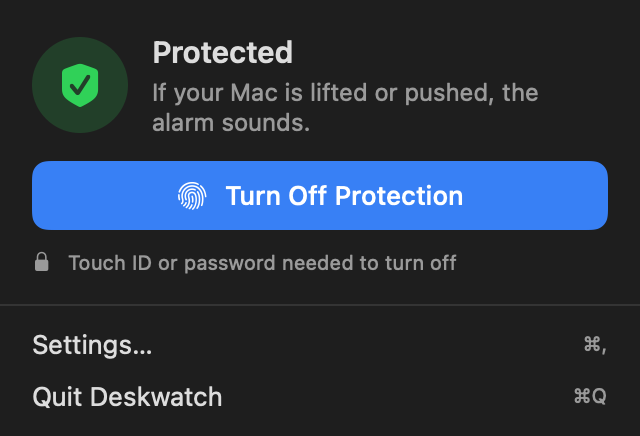
- In Deskwatch, open Settings > Alarm and switch on “Turn on when I lock my Mac”. It is off until you choose it.
- Press Control-Command-Q and keep your hands off the Mac for a few seconds while it checks the desk.
- Walk away. If someone lifts or shoves the Mac or closes the lid, a siren plays at full volume.
- Unlock your Mac when you are back, and protection turns off by itself.
In our tests on a MacBook Air M2 at the default setting, every lift set it off in under a second. A slow slide, under about 15 cm a second, did not. It needs an Apple silicon MacBook on macOS 15 or later, and it can't find a Mac after it is gone. It costs $4.99 once. For other options, see the best anti-theft software for a MacBook.
Questions people ask
What is the shortcut to lock a MacBook?
Press Control, Command and Q together. Apple lists Control-Command-Q as the shortcut to lock your screen. You may need to hold the keys for slightly longer than usual.
How do I lock my MacBook screen without it going to sleep?
Use Control-Command-Q or choose Apple menu > Lock Screen. Your apps stay open behind the lock. Your Mac can still sleep later, depending on your settings.
Does closing the lid lock a MacBook?
Closing the lid puts it to sleep. Whether it asks for a password when it wakes depends on the setting "Require password after screen saver begins or display is turned off" in Lock Screen settings. Set it to the shortest time.
Can I lock my MacBook from my iPhone?
Only by turning on Lost Mode in the Find My app, and that is for a lost or stolen Mac. The Mac must be on and online. On Apple silicon it then needs your Apple Account password, and you can't unlock it from your phone.
Does an Apple Watch lock a MacBook?
Apple's guide lists Apple Watch as a way to unlock your Mac, not as a way to lock it. Use a shortcut, Touch ID or a hot corner to lock it.
How do I lock my MacBook keyboard to clean it?
Locking the screen won't do it, because a key press still wakes the Mac. Apple says to shut down the computer and unplug the power adapter before cleaning a MacBook.
Sources
Checked 5 November 2026: Apple's Mac User Guide on locking the screen, Lock Screen settings, hot corners and requiring a password after waking; Apple Support on Mac keyboard shortcuts, a lost or stolen Mac, and cleaning Apple products; Apple's MacBook Neo tech specs. Alarm results are our own tests on a MacBook Air M2 at the default setting.