Guide
How to turn on Find My Mac
Open System Settings, click your name, then click iCloud, See All and Find My Mac. Click Turn On, then Allow. Do it today: Find My can't be switched on after your Mac goes missing, and it is the only Apple service that can locate a lost Mac.
· Checked against Apple's guides on 7 November 2026
What this covers
How do you turn on Find My Mac?
There are two parts. First let Find My use your Mac's location, then switch on Find My Mac itself. These steps are from Apple's guide and match macOS Sequoia 15, Tahoe 26 and macOS 27.
Part 1: turn on Location Services
- Choose Apple menu > System Settings.
- Click Privacy & Security in the sidebar. You may need to scroll down.
- Click Location Services and make sure it is on.
- Turn on Find My in the list of apps. If it isn't there, Apple says to “go to System Services in the list of apps, click Details, then turn on Find My Mac.”
Part 2: turn on Find My Mac
- In System Settings, click your name at the top of the sidebar. No name there? Sign in with your Apple Account first.
- Click iCloud, click See All, then click Find My Mac.
- Click Turn On, then click Allow when your Mac asks to let Find My Mac use its location. If asked, type your Apple Account password.
- Leave the Find My network switched on (more on that below), then click Done.
Short version: System Settings > your name > iCloud > See All > Find My Mac > Turn On.
Should you turn on the Find My network?
Yes. It is the switch that lets you find a Mac that has no internet. Apple describes the Find My network as “an encrypted, anonymous network of hundreds of millions of Apple devices.” Nearby Apple devices pick up a faint Bluetooth signal from your missing Mac and pass its rough location to you, without anyone seeing whose it is.
Apple's security guide says “Find My even works with a Mac that's offline and asleep.” A stolen Mac may well be closed and off Wi-Fi, so this is the part that matters most. Apple says the last known location is kept for up to seven days with the Find My network on, and for up to 24 hours without it.
How do you check Find My Mac is working?
Don't trust the switch alone. Look for your Mac from somewhere else:
 On any browser, go to icloud.com/find and sign in with your Apple Account. Your Mac should appear in your devices.
- On your iPhone or iPad, open the Find My app and look for your Mac in your devices.
- On the Mac, go back to System Settings > your name > iCloud > See All > Find My Mac and check it says on.
If the Mac shows on the map, you are set. While you are in Find My, try Play Sound once so you know where the button is on a bad day.
Why is Find My Mac greyed out or won't turn on?
Apple documents only a few causes. Work down this list:
| What you see | Likely cause | What to do |
|---|---|---|
| A warning badge on the Find My icon | Location Services is off | Turn it on in Privacy & Security first (Part 1) |
| No name at the top of System Settings | You are not signed in to iCloud | Sign in with your Apple Account, then try again |
| Switch is off for you but on the Mac | Another user on this Mac has it | Apple says only one user at a time can use it |
| Switch won't move on a work laptop | The Mac may be managed by your employer or school | Ask your IT team; they may track it already |
The last row is our advice, not Apple's words: Apple doesn't spell it out on the pages we checked. If none of these fit, restart the Mac and try again, and check you are on the latest macOS.
Where is Find My Mac on older macOS?
Apple renamed a few things, which is why old guides look wrong. Here is where to look:
| macOS version | Where Find My Mac is |
|---|---|
| macOS 27, Tahoe 26, Sequoia 15 | System Settings > your name > iCloud > See All > Find My Mac |
| Ventura 13 | System Settings > your name > iCloud > Find My Mac (click Show All if it isn't listed) |
Ventura still called it an Apple ID; newer versions say Apple Account. If your Mac has System Preferences instead of System Settings, it is older than Ventura and the steps above won't match it exactly.
What else does turning on Find My Mac do?
It turns on Activation Lock. Apple says: “When you add your Mac to Find My, Activation Lock is automatically turned on.” On a Mac with Apple silicon or the T2 chip, your Apple Account password is then “required before anyone can turn off Find My, erase your Mac, or reactivate and use your Mac.”
That makes a stolen Mac far less useful to resell, even if the thief wipes it. Apple lists two requirements on Apple silicon: the security policy set to Full Security, which is the default, and two-factor authentication for your Apple Account. Before you sell or give away your Mac, turn Find My off so the next owner isn't locked out. It asks for your Apple Account password.
Can you turn on Find My Mac after it is stolen?
No. Apple puts it plainly: “To mark a device as lost, you must add it to Find My before it's lost.” Apple also says Find My Mac is “the only Apple service that can help track or locate a lost Mac.” So if it was off, nobody at Apple can switch it on for you or tell you where the Mac is.
If that has already happened, follow our checklist for a stolen MacBook and read what actually works to track a stolen laptop.
What can't Find My Mac do?
Find My is for after your Mac is gone. Know its limits before you rely on it:
- To lock or erase your Mac, Apple says it “must be powered on and connected to the internet.”
- It can show an offline Mac on the map, but it can't play a sound on it or erase it.
- A Mac locked in Lost Mode can't be unlocked from your phone. You unlock it on the Mac itself.
- It does nothing at the moment someone picks up your Mac. Nobody nearby hears a thing.
So pair it with habits that stop the theft in the first place: lock your MacBook every time you step away, and think about where you leave it, as in our guide to working in a cafe.
Find My plus an alarm: how Deskwatch fits in
Deskwatch is the app this site sells, so read this with that in mind. It covers the moment Find My misses: someone lifting your Mac off the table. Turn it on before you walk away, and if anyone lifts it, shoves it or closes the lid, a siren plays at full volume and the screen locks. Only your Touch ID turns it off.
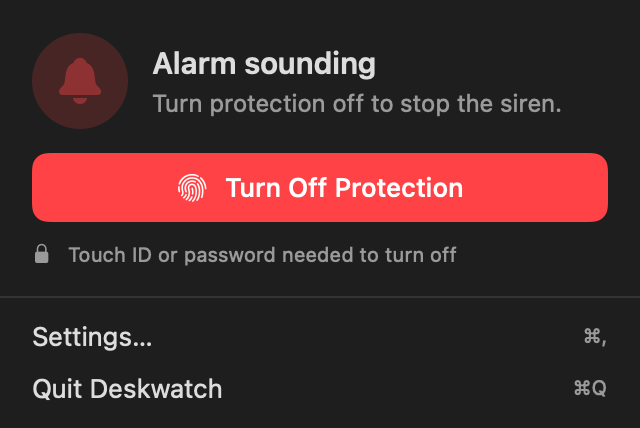
In our tests on a MacBook Air M2 at the default setting, every lift set it off in under a second. A slow slide, under about 15 cm a second, did not. It can't find a Mac once it is gone, so keep Find My on as well. It needs an Apple silicon MacBook on macOS 15 or later and costs $4.99 once. For other options, see the best anti-theft software for a MacBook.
Questions people ask
Where is Find My Mac in System Settings?
Open System Settings and click your name at the top of the sidebar. Then click iCloud, click See All, and click Find My Mac. That path is the same on macOS Sequoia 15, Tahoe 26 and macOS 27.
How do I know if Find My Mac is on?
Go back to the Find My Mac screen in System Settings and look at the switch. You can also sign in at icloud.com/find, or open the Find My app on your iPhone, and see if your Mac shows up.
Can I turn on Find My Mac after it was stolen?
No. Apple says you must add a device to Find My before it is lost. If it was off, Apple can't locate the Mac for you, so change your passwords and report the theft instead.
Does Find My Mac work when the Mac is asleep or offline?
It can, if the Find My network is on. Apple says Find My even works with a Mac that is offline and asleep. You can see where it is, but you can't play a sound, lock it or erase it until it is online.
Why is Find My Mac greyed out?
Most often Location Services is off, or you are not signed in to iCloud. Only one user on a Mac can use Find My Mac, so another account may have it. A work or school Mac may be managed by your employer.
Does Find My Mac need two-factor authentication?
For Activation Lock on a Mac with Apple silicon, yes. Apple lists two-factor authentication for your Apple Account and the Full Security policy, which is the default, as requirements.
Sources
Checked 7 November 2026 in a browser: Apple's Find My for Mac guide (set up Find My on Mac, turn on Lost Mode); Apple Support on a lost or stolen Mac and on Activation Lock for Mac; Apple's iCloud guide on locating a device; Apple Platform Security on Find My. Alarm results are our own tests on a MacBook Air M2 at the default setting.